
How To Edit Golf Videos: Easy Pro Tips
To edit golf videos well, organize your clips, show the key shots, and keep the story clear and engaging.
Learning how to edit golf videos is part technical skill and part storytelling. The best edits do more than show a swing; they capture the pressure of the shot, the shape of the course, and the small moments that make golf feel real. This guide explains a reliable workflow for beginners, creators, coaches, and golf vloggers who want polished results.
What Makes a Golf Video Good?
A good golf video helps viewers follow the round without making them work too hard. It shows where the player is, what the player plans to do, and what happens after the shot.
Golf is a slow sport compared with basketball or soccer. That gives you room to build mood, but it also creates a risk. Long walks, repeated practice swings, and silent gaps can make a video feel flat.
When you learn how to edit golf videos, focus on three goals:
• Make the action easy to understand
• Keep the pace steady
• Make the viewer feel present on the course
A strong golf edit may include a wide shot of the hole, a close shot of the grip, the swing, ball flight, landing, and the player’s reaction. These clips work like sentences in a story. Each one should add useful information or emotion.
Your audience also affects the edit. A golf lesson needs clear swing views and slow motion. A golf vlog needs personality and course atmosphere. A tournament recap needs quick context, key shots, and a clear result.

Plan Your Golf Video Before Editing
The editing process becomes much easier when you make a plan before opening your software. Start by deciding what the video should do for the viewer.
Ask yourself:
• Is this a golf vlog?
• Is it a swing analysis?
• Is it a course review?
• Is it a match recap?
• Is it a short social media clip?
• Is it a coaching video?
Each format needs a different pace. A course review may use smooth shots of the fairway and greens. A swing lesson may use repeated angles, lines, labels, and voice-over. A vlog may rely on natural talk and funny moments.
Create a simple shot list before filming. Try to capture:
• An opening view of the course
• The player preparing for the shot
• A wide view of the full swing
• A closer view of the club and hands
• The ball flight or a reaction shot
• The result near the green or hole
• Course details, such as bunkers, water, flags, and signs
• Short comments from the player
One mistake I often see in golf edits is trying to save weak footage with clever effects. Editing cannot fully repair a missed angle, loud wind, or a blocked view. Good planning gives you more options and reduces stress later.
Organize Your Golf Footage
Before you learn how to edit golf videos, build a clean file system. Good organization saves time and helps you find the best shots quickly.
Create one main folder for the project. Inside it, add folders such as:
• Video clips
• Audio
• Music
• Voice-over
• graphics
• Photos
• Project files
• Exports
Rename clips with useful details. For example, use names such as Hole-04-drive-wide or Hole-04-putt-close. Camera file names often look random, so clear labels can save hours.
Watch every clip before placing it on the timeline. Mark the best takes with a star, color, or rating. Note problems such as:
• Camera shake
• Poor focus
• Wind noise
• People walking in front of the lens
• A cut-off club or ball
• Overexposed skies
• Long pauses
Make a backup before you begin. A second drive or trusted cloud service can protect your work if a card fails or a project file becomes damaged. This is a basic step, but it prevents painful losses.
Choose the Right Editing Software
You can learn how to edit golf videos with free or professional software. The best choice depends on your goals, device, budget, and comfort level.
Beginner-friendly options include:
• CapCut for quick edits and social media videos
• iMovie for simple projects on Apple devices
• Clipchamp for basic Windows editing
• DaVinci Resolve for powerful free editing tools
Professional options include:
• Adobe Premiere Pro for advanced editing and workflow control
• Final Cut Pro for fast editing on Mac computers
• DaVinci Resolve Studio for advanced color, audio, and effects
Look for these features:
• Timeline editing
• Slow motion
• Basic color correction
• Audio cleanup
• Text and title tools
• Speed control
• Video stabilization
• Export presets
A phone editor can be enough for a short golf reel. A desktop program is usually better for a full round, multi-camera project, or detailed swing analysis.
Do not choose software because it has the most effects. Choose software that lets you cut cleanly, hear speech clearly, and export a sharp video. Those features matter more than flashy transitions.

Build a Simple Golf Video Editing Workflow
A repeatable workflow is the foundation of how to edit golf videos. It keeps your creative work focused and helps you avoid missing important details.
1. Create a rough cut
Place the useful clips on the timeline in story order. Do not worry about color, music, or effects yet.
Remove clips that are out of focus, too shaky, or technically poor. Keep the first edit loose. Your goal is to understand the story, not create a finished product.
2. Set the story structure
A simple golf video may follow this order:
-
Opening course shot
-
Short introduction
-
Hole or challenge explanation
-
Player preparation
-
Main shot
-
Result and reaction
-
Next hole or closing thought
This structure works because viewers always know what is happening. It also gives the video a natural rhythm.
3. Trim dead time
Remove long walks, repeated setup movements, and empty silence unless they add mood or context. Keep small pauses when they show pressure or concentration.
A useful test is to watch the edit without sound. If the story still makes sense, your visual structure is strong.
4. Add supporting footage
Use fairway views, club close-ups, shoes on grass, scorecards, flags, and green details to connect scenes. These clips are often called cutaways or B-roll.
B-roll acts like a bridge. It can hide a jump cut, shorten a slow moment, or give the viewer a better sense of place.
5. Add audio and music
Place dialogue and natural sound first. Then add music at a low level. Your music should support the scene, not compete with speech or the sound of the strike.
6. Add graphics and polish
Use titles, hole numbers, score details, swing lines, and captions only when they help. Keep the design consistent from start to finish.

Edit Golf Swings for Clarity
Swing footage needs special care. A fast cut may look exciting, but it can hide the very movement your viewer wants to study.
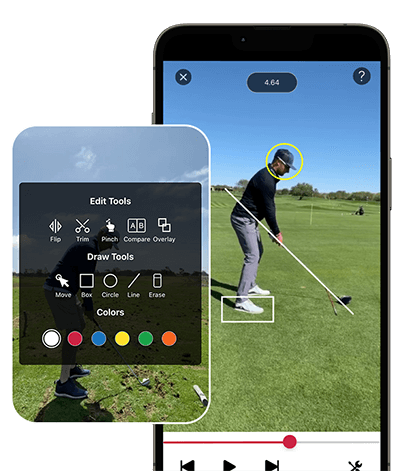
Use a wide or medium shot that shows the full body, club, and ball. Keep the camera angle consistent when comparing swings. A down-the-line angle and a face-on angle reveal different details, so label each view clearly.
For a swing analysis, this order often works well:
• Show the full-speed swing
• Replay the swing in slow motion
• Pause at key positions
• Add a simple line or circle
• Explain one movement at a time
• Return to full speed
Slow motion can help viewers see the takeaway, top of the backswing, impact, and finish. However, slow motion does not make poor footage sharper. It only gives you more time to view the same image.
Avoid drawing too many lines on the screen. One hip line, shoulder line, or club path may help. A screen covered with graphics can confuse the viewer.
When learning how to edit golf videos, remember that a swing edit should answer a clear question. For example, is the player lifting the head, losing posture, or changing the club path? One focused lesson is more useful than ten unclear comments.

Use Camera Angles and Golf B-Roll
Camera position changes how viewers understand a golf shot. Use more than one angle when possible, but do not cut between angles without a reason.
Useful golf camera angles include:
• Wide fairway shot for course context
• Face-on swing angle for body movement
• Down-the-line angle for club path
• Low ball-level angle for impact drama
• Close-up of the grip or ball
• Rear course shot for ball flight
Keep the camera steady during the swing. A tripod, monopod, or stable surface can help. If you shoot handheld, brace your arms and avoid sudden movement until the ball has landed.
B-roll adds texture to a golf video. Film details such as:
• Dew on the grass
• A club resting near the bag
• The player reading a putt
• A flag moving in the wind
• Sand in a bunker
• Shoes walking between shots
• Score writing on a card
A common mistake is using B-roll only at the start. Spread it through the edit to keep transitions smooth and maintain visual interest.

Improve Golf Video Audio
Viewers may forgive average video quality, but poor audio can make them leave. Clear sound is one of the fastest ways to make a golf video feel professional.
Use a lavalier microphone for spoken commentary when possible. A shotgun microphone can work well when placed near the speaker. Wind protection is important because open golf courses often have strong and uneven wind.
Record natural golf sounds, including:
• Club impact
• Ball landing
• Footsteps
• Birds and course ambience
• Quiet reactions
• Conversations
Keep natural sound under the music. The strike of a well-hit ball can be more powerful than a dramatic song.
For speech, remove background noise carefully. Too much noise reduction can make a voice sound metallic or underwater. Always compare the edited audio with the original so you do not remove natural character.
Use audio levels that feel comfortable. Avoid sudden jumps between talking, music, and impact sounds. Headphones are useful because laptop speakers may hide low hums and harsh high sounds.

Add Music, Text, and Graphics
Music can shape the mood of your golf video. Calm music may suit a quiet morning round. A faster track may suit a competitive match or highlight reel.
Choose music that you have permission to use. Copyright claims can affect monetization and visibility on platforms such as YouTube, Instagram, and TikTok. Licensed libraries and platform music tools can reduce this risk, but always check the current terms.
Use text to provide useful information:
• Player names
• Hole number
• Yardage
• Club choice
• Score
• Course name
• Short coaching points
Keep text large enough to read on a phone. Use strong contrast between the text and background. Avoid placing important information near the edges, where platform layouts may cover it.
Graphics should look consistent. Use the same font, colors, and placement throughout the video. A clean design is like a well-marked fairway. It guides the viewer without demanding attention.
Color Correct and Export Your Video
Color correction helps your golf footage look consistent. Cameras may record one clip with a blue tint and another with warm sunlight. Basic correction can make them feel like part of the same video.
Start with these adjustments:
• Exposure
• White balance
• Contrast
• Highlights
• Shadows
• Saturation
Do not push saturation too far. Bright green grass may look attractive at first, but unnatural color can reduce trust and detail.
Match clips before adding a creative look. This matters when you combine phone footage, action camera clips, and DSLR footage. Different cameras often produce different color and contrast.
Before exporting, check:
• The beginning and end of the video
• Every title and score
• Audio levels
• Slow motion sections
• Spelling
• Music rights
• Video resolution
For most online videos, export in the same frame size and frame rate used during filming. Common choices include 1920 by 1080 for full HD and 3840 by 2160 for 4K. Use the platform’s current recommendations because upload settings can change.
Watch the final file from start to finish on a phone and computer. A timeline preview can hide errors that appear in the exported file.
Edit Golf Videos for YouTube and Social Media
The platform changes how you should edit golf videos. A long YouTube video can build a story. A short vertical clip must deliver value almost at once.
For YouTube:
• Use a clear opening in the first few seconds
• Explain the challenge or goal
• Include useful course or swing details
• Create sections for longer videos
• Add a strong thumbnail and accurate description
For TikTok, Instagram Reels, and YouTube Shorts:
• Use a vertical frame
• Start with the most interesting moment
• Add readable captions
• Keep the action tight
• Remove long introductions
A vertical short might show a difficult bunker shot, then replay it with a quick explanation. A long video might show the full hole, the decision process, and the final result.
Do not simply crop a horizontal video and assume it will work vertically. Reframe the player, ball, and club so the main action stays visible. Check the safe areas because platform buttons and captions can cover parts of the screen.
Common Golf Video Editing Mistakes
Many editing problems are easy to prevent. Reviewing them can improve your work faster than adding more effects.
Showing too much walking
Walking between holes can provide context, but long walks often slow the video. Keep a short part if the conversation matters, then use a time-lapse, cutaway, or transition.
Cutting away before the ball lands
The ball flight and result are important. Hold the shot long enough for viewers to understand where the ball went.
Using music too loudly
If viewers cannot hear the player or natural impact sound, lower the music. Dialogue and key action should lead the mix.
Overusing slow motion
Slow motion works best for a teaching point or dramatic replay. If every shot moves slowly, the video loses energy.
Adding too many effects
Transitions should connect scenes. They should not become the main attraction.
Ignoring privacy and permission
Ask before filming other players closely. Be careful with children, private conversations, and identifiable personal information. Course rules may also limit filming in certain areas.
Making unsupported swing claims
If you are not a qualified golf instructor, present technical comments as observations rather than medical or professional advice. A video edit should not make a confident claim that the footage cannot support.
A Practical Golf Video Editing Checklist
Use this checklist before publishing:
• Is the purpose of the video clear?
• Does the opening create interest?
• Can viewers follow each hole or shot?
• Is the best action easy to see?
• Does the audio sound clean?
• Is music lower than speech?
• Are titles accurate and readable?
• Are slow-motion clips smooth?
• Does the color match across cameras?
• Have you removed empty pauses?
• Do you have permission to use the music?
• Does the final export look good on a phone?
A final review from someone who does not know the project can also help. Ask them where they felt confused or bored. Fresh viewers often notice problems that the editor no longer sees.
One lesson I learned from editing sports footage is to take a break before the final review. When you watch the same timeline too many times, your brain fills in missing details. A short break helps you see the edit as a viewer would.
How to Edit Golf Videos Faster
Speed comes from preparation, not rushing. Create a template with your usual title style, audio settings, color tools, and export settings.
Use keyboard shortcuts for:
• Cutting clips
• Playing and pausing
• Moving between edits
• Adding markers
• Zooming the timeline
Create folders for reusable items such as logos, score graphics, and title cards. Keep a small library of licensed music and sound effects.
Edit in passes:
-
Story pass
-
Timing pass
-
Audio pass
-
Color pass
-
Graphics pass
-
Final quality check
Trying to perfect every clip during the first pass wastes time. Make the story work first, then improve the surface.
If your computer struggles with 4K footage, use proxy files. Proxies are lower-resolution copies used during editing. The final export can still use the original high-resolution media.
Frequently Asked Questions About How to Edit Golf Videos
What is the best software for editing golf videos?
DaVinci Resolve, Adobe Premiere Pro, Final Cut Pro, CapCut, and iMovie can all edit golf videos. Choose based on your device, budget, and need for tools such as slow motion, audio repair, color correction, and graphics.
How long should a golf video be?
The ideal length depends on the topic and platform. A short social clip may last 15 to 60 seconds, while a detailed YouTube golf vlog may run 8 to 20 minutes if each section adds value.
How do I make a golf swing slow motion video?
Record at a higher frame rate when your camera supports it, then slow the clip in your editing software. Keep the image steady, maintain good light, and avoid excessive digital zoom.
How do I remove wind noise from golf videos?
Use a windscreen while recording, then apply light noise reduction during editing. Severe wind damage may not be fully repairable, so clean recording is usually more effective than heavy audio processing.
What frame rate should I use for golf videos?
Use the frame rate that matches your camera and final platform. A higher frame rate can help with smooth slow motion, while 24, 30, or 60 frames per second can work well for standard online video.
How can I show the ball flight more clearly?
Use a wide, stable camera angle with enough sky and fairway in the frame. Strong contrast, good exposure, and a clean background can help, but no edit can reliably recover a ball that was never visible in the original footage.
Conclusion
Learning how to edit golf videos starts with a clear story, organized footage, steady camera angles, and clean sound. Use slow motion for teaching, B-roll for flow, graphics for clarity, and music with restraint. Always review the final export on the devices your viewers use.
Start with one hole or one short swing analysis rather than a full round. Apply this workflow, study what keeps viewers engaged, and improve one editing skill at a time. Share your best golf edit, explore more video techniques, and keep practicing until your footage feels as smooth as a well-struck approach shot.

Brandon Knoxley is a sport & fitness writer and training guide contributor at MySportFitHub. He focuses on practical workouts, performance-based training, and honest fitness gear insights designed for real people and real results. Brandon is passionate about helping beginners and active individuals train smarter, avoid common mistakes, and build sustainable fitness habits.