
How To Calibrate Garmin To Treadmill: Easy Accuracy Guide
To calibrate Garmin to a treadmill, run indoors, record the distance, then save and enter the treadmill’s exact reading.
Garmin watches estimate indoor distance with an accelerometer rather than GPS, so the first treadmill run may be off. Learning how to calibrate Garmin to treadmill distance can improve pace and mileage, especially when you use the same watch, stride, and running form often. This guide explains the correct steps, common errors, foot pod options, and ways to get more reliable results.
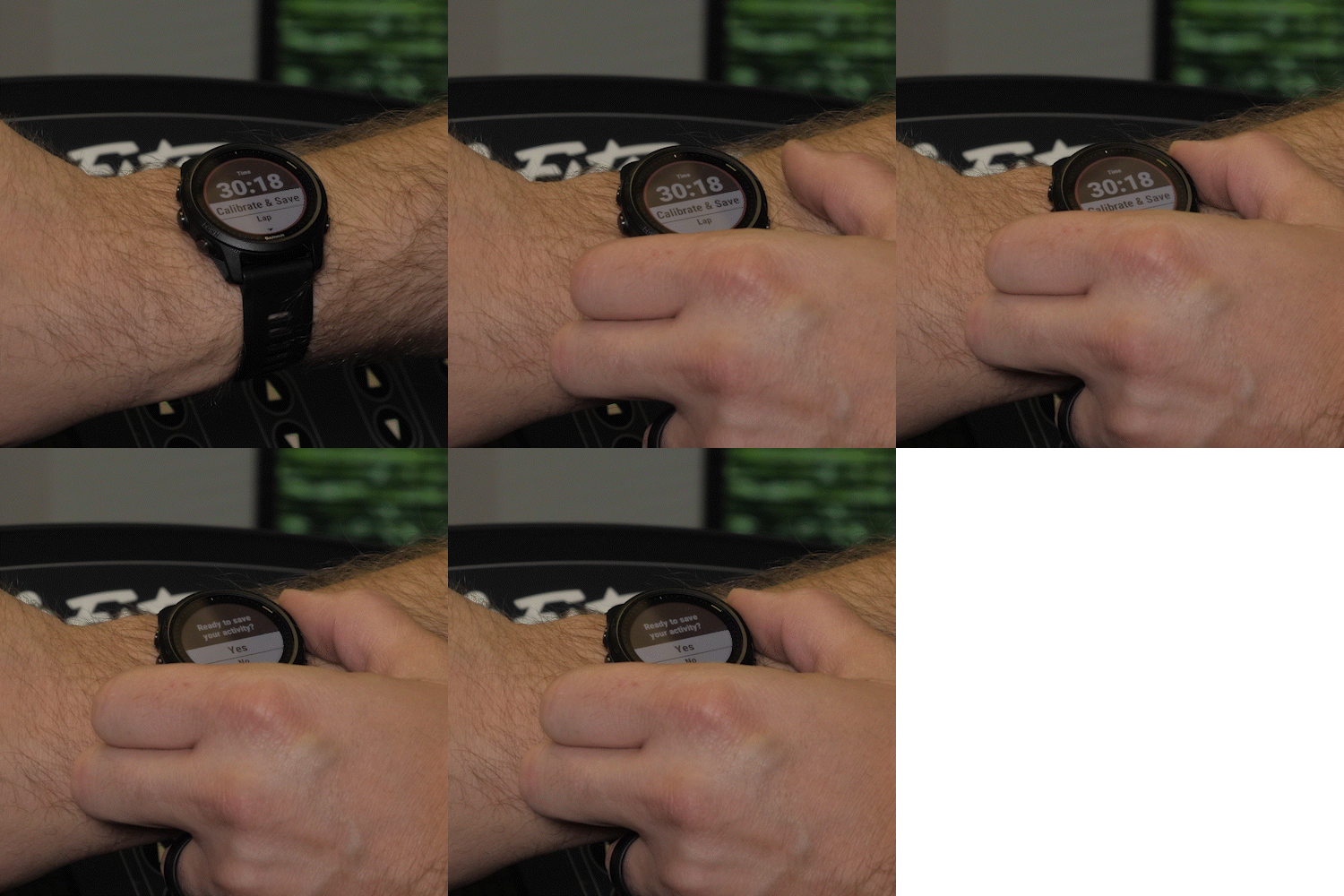
Why Garmin treadmill distance can be inaccurate
Garmin watches use motion sensors to estimate distance during an indoor run. Since GPS signals do not work reliably indoors, the watch studies your arm movement, stride pattern, and running speed.
This method works well once the watch learns your stride. However, it is not a direct measurement of the treadmill belt. A small change in pace, arm swing, incline, or fatigue can change the result.
Learning how to calibrate Garmin to treadmill distance matters because indoor workouts often show differences such as:
• The treadmill shows 3.10 miles, while Garmin shows 2.85 miles.
• Garmin records a faster or slower pace than the treadmill.
• Distance looks correct at one pace but becomes less accurate at another.
• Holding the treadmill rails causes the watch to record too little distance.
Treadmill calibration is not a promise of perfect accuracy. It is a way to teach the watch how your body moves during indoor running.
What you need before calibration
You only need a few things to calibrate Garmin to treadmill distance correctly. The quality of the result depends more on consistency than on special equipment.
Prepare the following:
• A compatible Garmin watch with a Treadmill or Indoor Run activity.
• A treadmill that displays distance clearly.
• Your usual running shoes.
• A flat or consistent incline setting.
• Enough time to run at least 1 mile, or the minimum distance required by your Garmin model.
• The ability to run without holding the side rails.
Check your watch manual if you are unsure about the minimum distance. Many Garmin models need about 1.5 kilometers or 1 mile before the calibration option appears, but the exact requirement can vary.
If you use a Garmin-compatible foot pod, you can also calibrate the foot pod. This can provide more stable speed and distance data, especially for runners who train indoors often.

How to calibrate Garmin to treadmill step by step
The basic process is simple. Start a treadmill activity, run a steady distance, stop the activity, and enter the distance shown by the treadmill.
Step 1: Choose the treadmill activity
From the watch face, select the Run activity. Then choose Treadmill, Indoor Run, or a similar indoor running profile.
The name depends on your Garmin model. Turn off GPS if the watch asks you to enable it. Indoor treadmill workouts normally do not need GPS.
Step 2: Warm up without starting the calibration
Walk or jog for several minutes before you begin the measured portion. This helps your body settle into a natural stride.
Do not calibrate during a warm-up if you plan to change speed several times. Calibration works best when the measured run reflects your normal pace.
Step 3: Run at a steady pace
Run without holding the treadmill rails. Keep your arms moving as they would outdoors.
A steady pace gives the accelerometer a clear pattern to study. If you switch between walking, jogging, and sprinting, the watch may learn a less useful average.
For the best result:
• Use your normal running form.
• Keep the treadmill incline consistent.
• Avoid touching the console during the measured run.
• Do not hold the handrails.
• Run at least the minimum distance required by your model.
Step 4: Stop the activity after the required distance
When you finish, press the Stop button. Do not immediately discard the activity.
On many Garmin watches, the calibration command appears only after the watch has recorded enough distance. Look for an option such as:
• Calibrate & Save
• Calibrate and Save
• Save and Calibrate
The wording may differ by model and software version.
Step 5: Enter the treadmill distance
Read the distance on the treadmill display. Enter that number into the Garmin watch.
For example, if Garmin records 2.92 miles but the treadmill shows 3.00 miles, enter 3.00 miles when prompted. The watch then uses this information to adjust its indoor distance estimate.
This is the key part of how to calibrate Garmin to treadmill distance. Do not enter the distance you hoped to run. Enter the exact distance shown by the treadmill.
Step 6: Save the activity
Confirm the calibration and save the workout. The watch should use the updated calibration for future indoor runs.
Repeat the process after a major change in running shoes, stride, pace, or watch position. A new calibration can also help after a watch software update if indoor readings suddenly change.

How to calibrate Garmin to treadmill when the option does not appear
Sometimes the calibration option is missing. This does not always mean the watch has a fault.
The most common reasons include:
• The activity was too short.
• You selected an indoor walking profile instead of a treadmill running profile.
• The watch did not detect enough wrist movement.
• You paused the activity too often.
• The device software needs an update.
• Your Garmin model does not support manual treadmill calibration in the same way.
Try these steps:
-
Update the watch through Garmin Connect or Garmin Express.
-
Restart the watch.
-
Select the correct Treadmill or Indoor Run profile.
-
Run continuously for at least 1 mile.
-
Keep both arms moving naturally.
-
Stop the activity before saving it.
-
Check the save screen for a calibration option.
If the option still does not appear, check the manual for your exact Garmin model. Garmin menus differ across Forerunner, Fenix, Instinct, Venu, Vivoactive, and other product lines.
How to calibrate Garmin to treadmill with a foot pod
A foot pod measures movement near your shoe. It can provide more consistent indoor pace and distance data than wrist-based estimation.
To use one, pair the foot pod with your Garmin watch. Then open the sensor settings and check the speed and distance source. Depending on the model, you may be able to choose the foot pod for indoor speed and distance.
A typical setup looks like this:
-
Open Settings on the watch.
-
Select Sensors and Accessories.
-
Choose Add Sensor.
-
Select Foot Pod.
-
Wait for the watch to find the sensor.
-
Pair the sensor.
-
Open the foot pod settings.
-
Choose Calibrate.
-
Run a known distance, such as 1 mile.
-
Enter the distance shown by the track or treadmill.
Some foot pods allow manual calibration factors. Others use automatic calibration or Garmin Connect settings. Follow the instructions for the specific sensor.
A foot pod is useful, but it is not magic. Its reading can still change if you move it to a different shoe, wear it in a different position, or alter your stride.

The best treadmill settings for accurate Garmin data
Your treadmill setup can affect the calibration result. The goal is to make the measured distance as reliable as possible.
Use a consistent incline
A flat treadmill is easy to repeat, but a small incline can better match outdoor effort. The important point is consistency.
If you calibrate Garmin to treadmill distance at 1 percent incline, repeat future tests at the same incline when possible. A different incline may change your stride and affect the estimate.
Avoid the handrails
Holding the rails reduces arm movement. Since many Garmin watches use wrist motion to estimate distance, this can lead to an undercount.
If you need the rails for safety, use them only briefly. Do not use a rail-supported run as your main calibration workout.
Wear the watch correctly
Wear the watch snugly above your wrist bone. It should not slide during the workout, but it should not feel tight or uncomfortable.
A loose watch can miss part of your arm movement. A watch worn under a sleeve may also record motion differently.
Use your normal shoes
Your stride may change between lightweight racing shoes, cushioned trainers, and walking shoes. Calibrate Garmin to treadmill distance in the shoes you use most often indoors.
If you use several shoe types, expect small differences in pace and distance.
Keep the treadmill maintained
A loose, worn, or slipping belt may affect the treadmill’s own distance reading. Treadmill distance is often treated as the reference, but the machine may not be perfectly accurate.
For serious training, compare the treadmill with a measured indoor track or a calibrated foot pod. This helps you identify which device is actually creating the error.
Why Garmin treadmill calibration can change over time
Calibration does not permanently remove every source of error. Your body is not a metronome, and your stride changes with speed, fatigue, and incline.
Common causes of changing results include:
• Running faster than usual.
• Walking during part of the workout.
• Holding the rails.
• Wearing different shoes.
• Moving the watch to the other wrist.
• Running while tired.
• Changing treadmill incline.
• Using a different treadmill.
• Developing a longer or shorter stride.
Cold muscles may also create a different stride from a normal outdoor run. This is why one calibration session should not be treated as a permanent laboratory measurement.
A useful approach is to calibrate Garmin to treadmill distance during a normal, steady workout. Then compare several future runs rather than judging the watch from one session.

How accurate is Garmin on a treadmill?
Garmin treadmill distance can be reasonably close, but accuracy varies from person to person. Wrist-based distance is an estimate based on motion, not a direct measurement of the belt.
A runner with steady form may see small differences. A runner who changes speed often or holds the rails may see larger differences.
The treadmill itself may also be wrong. Many home treadmills are not professionally calibrated, and belt length, belt slip, speed settings, and maintenance can affect the displayed distance.
For most fitness workouts, a small difference is not important. For precise race preparation, use a measured track, a trusted foot pod, or another validated distance source to cross-check your data.
Research on wearable devices has found that accuracy can vary by device, activity, pace, and user. That supports a practical rule: use the same device and method for training comparisons, rather than expecting every reading to match perfectly.
Common mistakes when calibrating Garmin to treadmill
Small mistakes can produce a poor calibration. The most common one is entering the wrong distance.
Avoid these errors:
• Entering Garmin’s distance instead of the treadmill’s distance.
• Calibrating after a workout with many stops.
• Holding the treadmill rails.
• Running with one hand on the console.
• Using a short five-minute test.
• Calibrating while changing speed every minute.
• Ignoring the treadmill’s unit setting.
• Wearing the watch loosely.
• Moving the watch between wrists without recalibrating.
• Assuming every Garmin model uses the same menu.
Another mistake is calibrating against a treadmill that has a known problem. If the belt slips or the speed is inconsistent, the watch may learn an incorrect correction.
When possible, test the treadmill distance against a measured track. Think of calibration like tuning a kitchen scale: you need a reliable reference before you can trust the adjustment.
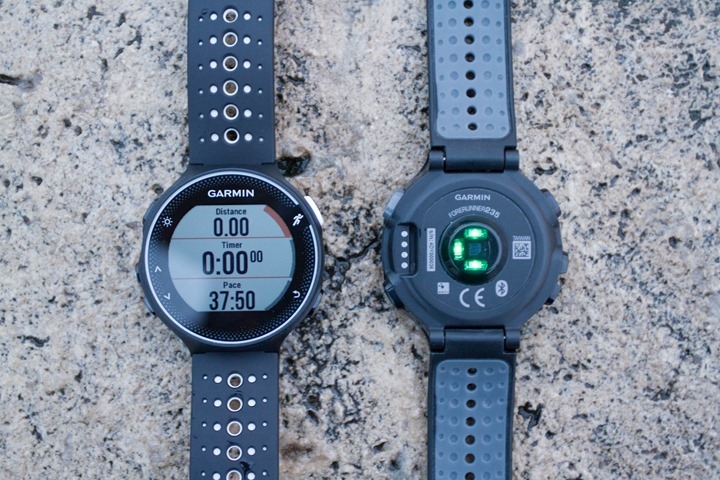
How to improve Garmin treadmill pace accuracy
Distance and pace are closely related, but they are not always equally accurate. Garmin may show a slow or unstable pace while the total distance appears reasonable.
Try these methods:
• Run for several minutes at a steady speed before judging pace.
• Avoid frequent speed changes.
• Keep your arm movement natural.
• Keep the watch snug.
• Use a foot pod for more stable indoor pace.
• Calibrate at the speed you use most often.
• Check whether the treadmill displays miles per hour or kilometers per hour.
• Wait for the watch to settle after starting the activity.
If you train with intervals, expect some delay between the treadmill speed change and the Garmin pace display. Wrist-based systems need time to recognize the new movement pattern.
For interval workouts, treadmill speed and workout time may be more useful than instant Garmin pace. You can still use Garmin to record heart rate, calories, time, and training load.
Garmin treadmill calibration for walking
The steps for walking are similar, but the result may be less stable on some watches. Walking creates less arm movement than running, especially when you hold a phone or use the handrails.
To calibrate Garmin to treadmill walking:
-
Select Treadmill, Walk, or Indoor Walk.
-
Walk without holding the rails.
-
Use a steady pace.
-
Continue for the minimum distance required by the watch.
-
Stop and choose the calibration option if available.
-
Enter the treadmill distance.
If the watch does not offer walking calibration, a foot pod may help. You can also use the treadmill’s distance for indoor walking and treat Garmin’s distance as an estimate.
Older adults and people who need the rails for balance should prioritize safety. Never remove support just to improve a fitness metric.
How to check whether the calibration worked
Do not judge the result from only one run. Test the calibration over several workouts.
A simple check is:
• Run 1 mile at your normal pace.
• Compare Garmin distance with the treadmill.
• Repeat on another day.
• Keep the same shoes, watch position, and incline.
• Note whether the difference stays similar.
If Garmin shows 0.98 miles when the treadmill shows 1.00 mile, that is a small difference. If it shows 0.70 miles, review your arm movement, activity profile, and calibration steps.
You can also compare the watch with a measured indoor track. If the treadmill and Garmin disagree with the track, the track is often the better reference when its distance is clearly marked and measured.
Keep a short training note with the treadmill model, speed, incline, shoes, and Garmin distance. This can reveal patterns that are hard to notice from one workout.
Frequently asked questions about how to calibrate Garmin to treadmill
How do I calibrate Garmin to treadmill distance?
Start a Treadmill or Indoor Run activity and run continuously for the minimum distance required by your model. Stop the activity, select Calibrate & Save if shown, and enter the exact distance displayed by the treadmill.
Why does my Garmin show a different distance from my treadmill?
Garmin estimates indoor distance from wrist movement, while the treadmill measures belt movement. Arm position, stride, speed changes, handrail use, shoe choice, and treadmill accuracy can all cause a difference.
Can I calibrate Garmin to treadmill without GPS?
Yes. Treadmill activities normally use the watch’s accelerometer rather than GPS. GPS is usually unnecessary indoors and may be unavailable or unreliable.
How long should I run before calibrating my Garmin?
Many Garmin watches need about 1 mile or 1.5 kilometers before calibration is available. Check your model’s manual because the required distance can vary.
Does a Garmin foot pod improve treadmill accuracy?
A foot pod can improve indoor pace and distance consistency because it measures movement near your shoe. It still needs correct placement and calibration, and it may require a new setup when moved to another shoe.
Should I hold the treadmill rails during calibration?
No, unless you need the rails for safety. Holding them changes your arm movement and can cause Garmin to record less distance than the treadmill.
Can I calibrate Garmin to treadmill after every workout?
You can, but it is usually unnecessary. Calibrate after a steady run, then repeat the process when your readings remain inconsistent or your shoes, stride, watch position, or training pace changes.
Why is Garmin treadmill pace not accurate during intervals?
The watch needs time to detect changes in your movement pattern. Treadmill speed can change faster than wrist-based pace estimation, so instant pace may lag during short intervals.
Conclusion
Calibrating Garmin to treadmill distance is simple: choose the correct indoor activity, run steadily without holding the rails, stop after the required distance, and enter the treadmill’s exact reading. Use consistent shoes, watch placement, speed, and incline for better results.
Remember that both the Garmin watch and the treadmill have limits. For everyday fitness, a small difference is normal. For precise training, compare your setup with a measured track or a properly calibrated foot pod.
Try the process during your next steady treadmill run, then compare the results across several workouts. If you have a helpful calibration tip or a question about your Garmin model, share it in the comments.

Brandon Knoxley is a sport & fitness writer and training guide contributor at MySportFitHub. He focuses on practical workouts, performance-based training, and honest fitness gear insights designed for real people and real results. Brandon is passionate about helping beginners and active individuals train smarter, avoid common mistakes, and build sustainable fitness habits.