How To Calibrate Apple Watch To Treadmill: Quick Guide
Apple Watch calibration for treadmill workouts starts with a 20-minute outdoor walk or run using GPS.
If your Apple Watch shows the wrong treadmill distance, the issue is often calibration, arm movement, or poor workout settings. Learning how to calibrate Apple Watch to treadmill workouts can improve distance, pace, calories, and fitness data. This guide explains the correct setup, the outdoor calibration process, common mistakes, and ways to improve indoor workout accuracy.
Why Apple Watch Treadmill Distance Can Be Wrong
An Apple Watch cannot use GPS while you run indoors. Instead, it estimates distance from motion sensors, your arm movement, stride pattern, heart rate, and past workout data.
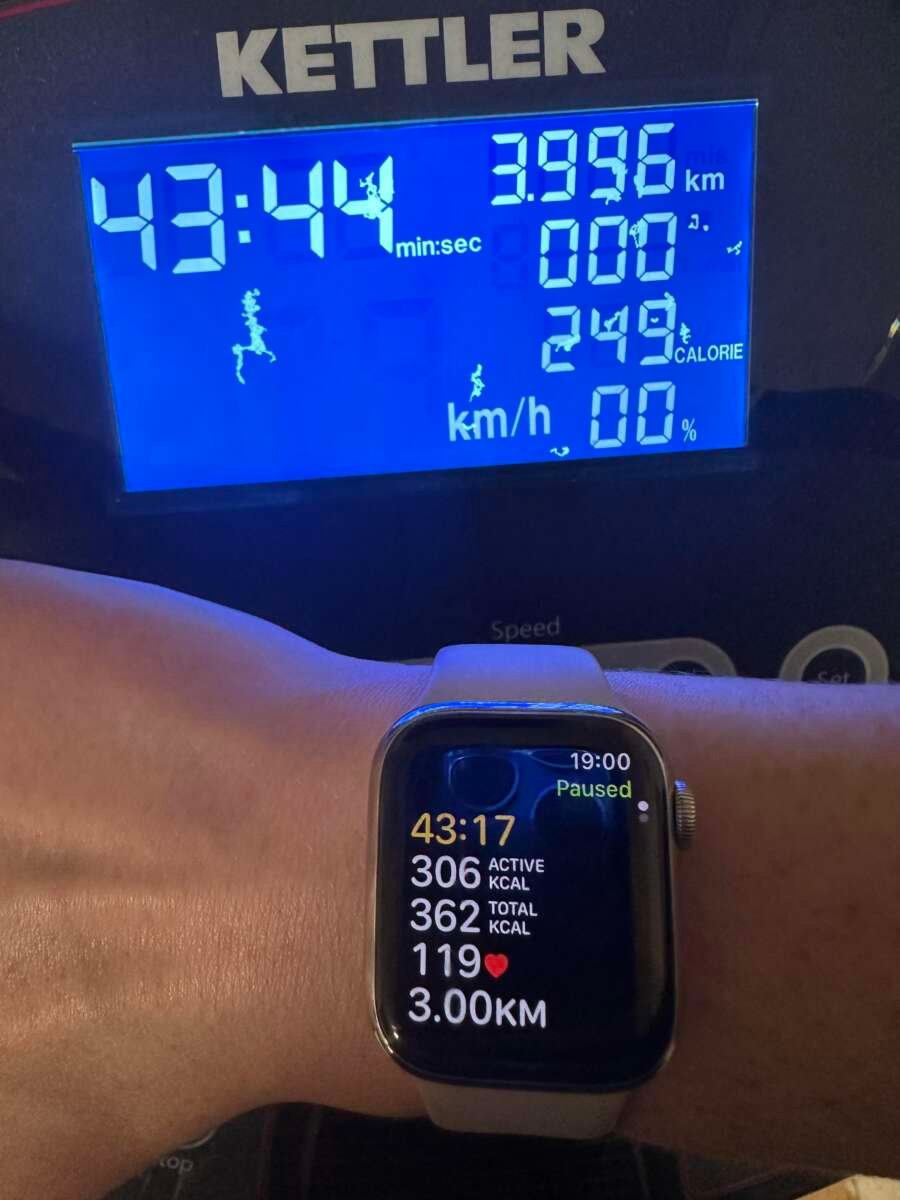
That estimate can drift from the number shown on the treadmill. A treadmill measures belt movement, while your Apple Watch measures your body movement. These are two different systems, much like comparing a car’s odometer with a step counter.
Common causes of inaccurate treadmill data include:
• Holding the treadmill rails
• Walking with short or uneven steps
• Wearing the watch too loosely
• Using the wrong workout type
• Running with limited arm movement
• Changing your pace often
• Using a steep incline
• Skipping outdoor calibration
• Having motion or location settings turned off
The treadmill itself may also be inaccurate. Many gym treadmills are not perfectly maintained, and some display a rounded distance. For this reason, neither device should be treated as a laboratory tool.
Still, learning how to calibrate Apple Watch to treadmill workouts can make your results much more reliable.

Check Your Apple Watch Before Calibration
Before you begin, check the settings that help your Apple Watch track movement. These settings may be under slightly different names, depending on your watchOS and iPhone software.
On your iPhone, open:
- Settings
- Privacy & Security
- Location Services
- System Services
- Motion Calibration & Distance
Make sure Motion Calibration & Distance is turned on. Also check that Location Services is active.
Next, confirm these settings:
• Fitness Tracking is enabled under Settings > Privacy & Security > Motion & Fitness.
• Wrist Detection is enabled in the Watch app under My Watch > Passcode.
• Your Apple Watch fits firmly but comfortably above the wrist bone.
• Your height, weight, age, and sex are correct in the Health app.
• The watch has enough battery for the full workout.
• The correct wrist is selected in the Watch app under My Watch > General > Watch Orientation.
Your health details affect calorie and fitness estimates. If your weight has changed, update it before calibration. A watch with old body data may still track distance fairly well, but calorie estimates can be less useful.
Make sure your Apple Watch is updated if possible. Apple often improves workout detection and sensor performance through watchOS updates.
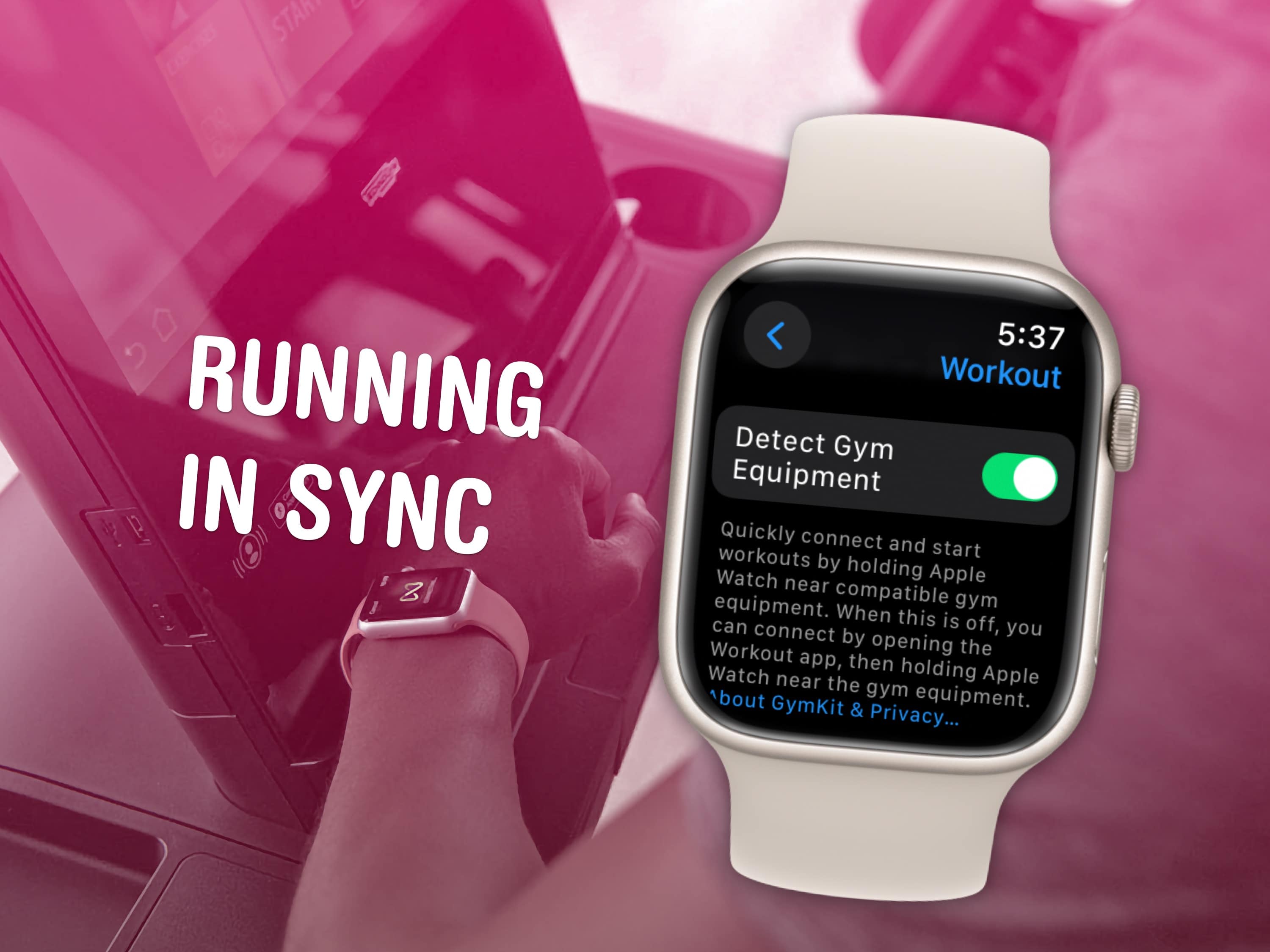
How to Calibrate Apple Watch to Treadmill
The most reliable way to calibrate Apple Watch for treadmill use is to first complete an outdoor walk or run in an open area. This gives the watch GPS distance that it can compare with motion data.
Follow these steps:
-
Go outdoors to a clear, open area with a good view of the sky.
-
Open the Workout app on your Apple Watch.
-
Choose Outdoor Walk or Outdoor Run.
-
Walk or run at your usual pace for at least 20 minutes.
-
Keep your watch arm moving naturally.
-
Avoid holding a phone in the watch arm if it changes your arm swing.
-
Stay in an area with reliable GPS coverage.
-
End and save the workout when you finish.
For better results, complete more than one outdoor workout. Try a normal walk, a faster walk, and a steady run if you use all three workout styles. This helps the watch understand different stride patterns.
You do not need to walk a perfect track. A flat sidewalk, park path, or quiet road can work well. Avoid areas with tall buildings, thick tree cover, or poor GPS reception during the first calibration session.
The outdoor workout does not directly copy treadmill distance into the watch. Instead, it helps the watch connect your motion patterns with a known distance. That information improves future indoor estimates.
This is the key process when learning how to calibrate Apple Watch to treadmill sessions.

Use the Correct Indoor Workout
After outdoor calibration, select Indoor Walk or Indoor Run for treadmill workouts. Do not use Outdoor Run on a treadmill because the watch may search for GPS and produce confusing results.
To start an indoor treadmill workout:
-
Open the Workout app.
-
Scroll to Indoor Walk or Indoor Run.
-
Tap the More button if you want to set a time, distance, or calorie goal.
-
Start the treadmill.
-
Begin walking or running with a natural arm swing.
-
Keep the watch arm free when possible.
-
End the workout on the watch when you stop.
If you use Apple Fitness+, select the workout that matches your activity. The watch can still estimate your movement during the session, but the workout type should match what you are doing.
Do not start a general “Other” workout unless your activity truly does not fit another option. A specific workout type gives the watch better context.
When you use this method consistently, how to calibrate Apple Watch to treadmill becomes less about repeating a special trick and more about using the right settings each time.
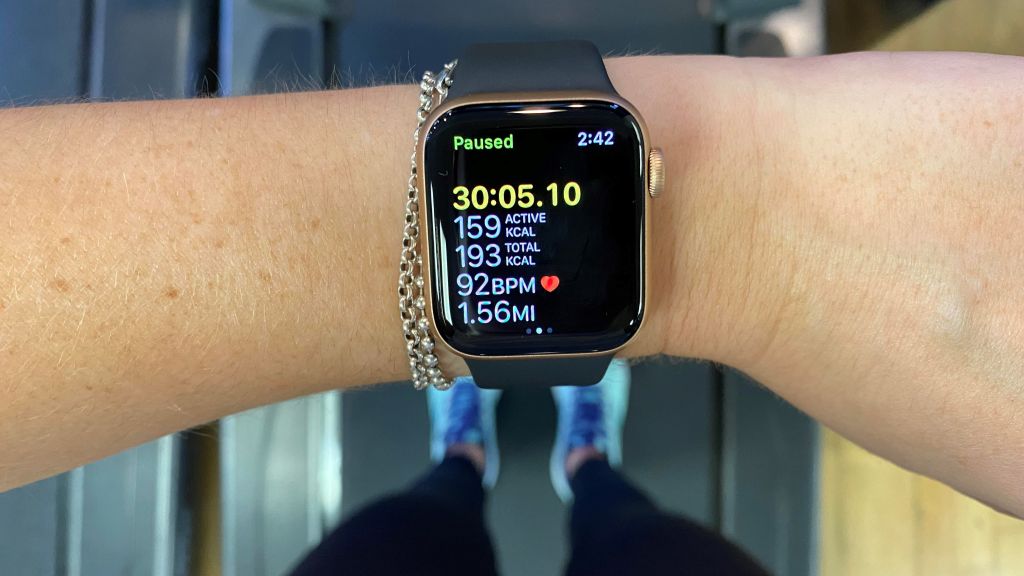
How to Improve Treadmill Accuracy
Calibration helps, but your workout habits matter just as much. The watch needs to see a natural and repeatable movement pattern.
Use these practical tips:
• Wear the watch snugly so the optical sensors and motion sensors stay stable.
• Keep your arms moving in a normal rhythm.
• Avoid holding the handrails unless you need them for safety.
• Look straight ahead instead of constantly checking the watch.
• Use the same wrist during calibration and treadmill workouts.
• Walk or run at a steady pace for most of the session.
• Keep your stride natural instead of taking forced, long steps.
• Clean the back of the watch if sweat or dirt affects sensor contact.
Holding the treadmill rails is one of the biggest problems. It changes your arm movement and can make the watch think you are moving more slowly or not moving at all. It also reduces the value of the treadmill workout because your body is not supporting itself in the usual way.
Incline can create another difference. A treadmill set to a steep incline may feel harder, but belt distance does not increase in the same way. The Apple Watch may also respond differently because your stride and arm movement change.
In my experience reviewing fitness tracking habits, the largest improvements usually come from wearing the watch correctly and stopping rail use. People often look for a hidden calibration button when the real problem is inconsistent movement.

How to Reset Apple Watch Calibration Data
If your Apple Watch remains far from the treadmill distance after several outdoor workouts, you can reset its calibration data. This gives the watch a fresh starting point.
On your iPhone, open:
- The Watch app
- The My Watch tab
- Privacy
- Reset Fitness Calibration Data
The wording may vary by software version. On some devices, the reset option may appear through the Health or Privacy settings.
Resetting calibration data does not erase your Apple Watch completely. It removes stored fitness calibration information, so the watch can learn your movement again.
After resetting, repeat the outdoor calibration process. Complete at least 20 minutes of Outdoor Walk or Outdoor Run in an open area. Then use Indoor Walk or Indoor Run for your next treadmill session.
Do not reset calibration after every workout. A single unusual treadmill reading is not enough evidence that the watch needs a reset. Compare several workouts first, and check whether you held the rails or changed your pace.
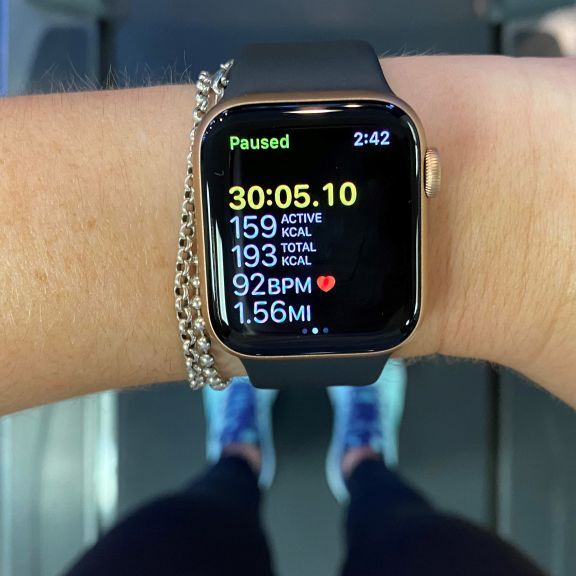
How to Compare Apple Watch and Treadmill Results
You should compare results across several workouts, not just one. Small differences are normal because the watch and treadmill use different measurement methods.
For a useful test:
-
Warm up for five minutes.
-
Set the treadmill to a steady speed.
-
Walk or run for 20 to 30 minutes.
-
Keep your arms moving naturally.
-
Avoid changing speed often.
-
Record the treadmill distance.
-
Record the Apple Watch distance after saving the workout.
-
Repeat the test on another day.
For example, if the treadmill shows 3.00 miles and the Apple Watch shows 2.88 miles, the difference is about 4 percent. That may be acceptable for a wrist-based estimate, especially if you changed pace or used an incline.
A larger gap may point to a setup issue. If the watch records 2.1 miles while the treadmill shows 3.0 miles, check your workout type, wrist fit, arm movement, and calibration settings.
Use the same treadmill when comparing results. Different machines can display different distances because of belt wear, speed settings, and maintenance.
How to calibrate Apple Watch to treadmill accurately depends on repeatable testing. One workout gives you a clue. Several similar workouts give you useful evidence.
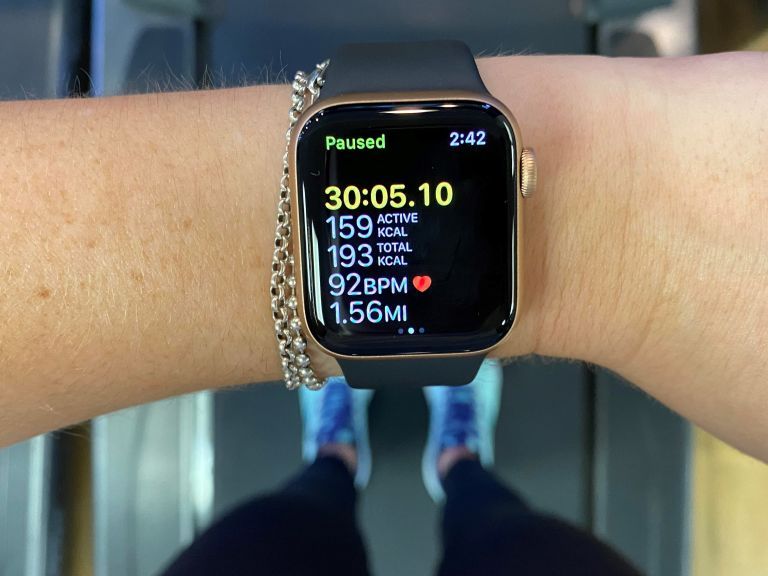
What to Do If Calibration Does Not Work
Sometimes calibration does not solve the problem. This can happen with unusual running styles, frequent pace changes, or limited arm movement.
Try these solutions:
• Restart both the Apple Watch and iPhone.
• Install available watchOS and iOS updates.
• Confirm that Indoor Walk or Indoor Run is selected.
• Check that Motion Calibration & Distance is active.
• Reset fitness calibration data and repeat outdoor workouts.
• Try a different treadmill.
• Wear the watch on the other wrist only if that wrist gives you a more natural arm swing.
• Avoid carrying heavy items in the watch arm.
If you use a walker, push a stroller, hold weights, or keep one hand on the rail, wrist-based distance may remain less accurate. The watch cannot fully understand movement that does not produce a normal arm swing.
For serious training, use the treadmill’s distance as the main reference and the Apple Watch for heart rate, time, effort, and workout trends. A foot pod or compatible running sensor may provide better indoor distance data than a watch alone.
Apple Watch is designed for everyday fitness tracking, not certified track measurement. Its value is strongest when you use it to monitor patterns over time.

Apple Watch Calibration Tips for Runners and Walkers
Walkers should focus on a steady pace and free arm movement. If you normally carry a bag, phone, or shopping item, avoid doing so during calibration.
Runners should calibrate at a pace they use often. If you train at both an easy pace and a fast pace, complete outdoor workouts at both speeds. Your stride length changes as your pace changes, so one calibration pace may not cover every workout.
If you run intervals, expect a larger difference. Repeated stops, sprints, and slow recovery periods make distance estimation harder. The treadmill may also take time to reach each new speed.
For indoor races or serious training plans, record the treadmill distance and Apple Watch data separately. This gives you a clearer view of both belt distance and wrist-based motion estimates.
A practical approach is to use Apple Watch trends rather than chasing perfect numbers. If the watch shows similar results for similar workouts, it is doing its job well.
Common Mistakes to Avoid
Many calibration problems come from simple errors. Avoid these mistakes:
• Starting an outdoor workout indoors during calibration.
• Choosing Outdoor Run on a treadmill.
• Ending the outdoor session before 20 minutes.
• Walking under heavy tree cover or between tall buildings.
• Holding the treadmill rails.
• Wearing the watch too loosely.
• Resetting calibration after every minor difference.
• Comparing a steep incline workout with a flat outdoor workout.
• Changing wrists between calibration and treadmill sessions.
• Trusting one treadmill display as perfect.
The most important lesson is consistency. Use the same workout mode, wear the watch in the same position, and keep your movement natural.
When I troubleshoot fitness tracker results, I start with basic behavior before changing settings. A loose band or fixed arm can create a bigger error than outdated software.
Frequently Asked Questions About How to Calibrate Apple Watch to Treadmill
How long should I walk outside to calibrate Apple Watch?
Walk or run outdoors for at least 20 minutes at your normal pace. Use an open area with a clear view of the sky so the watch can collect reliable GPS data.
Does Apple Watch automatically calibrate for treadmill workouts?
Apple Watch learns from outdoor workouts and uses that information to estimate indoor distance. It does not directly read the treadmill belt, so calibration improves the estimate rather than guaranteeing an exact match.
Should I choose Indoor Run or Outdoor Run on a treadmill?
Choose Indoor Run for running on a treadmill and Indoor Walk for walking. Outdoor workout modes are intended to use GPS and may provide inaccurate indoor results.
Why is my Apple Watch distance shorter than the treadmill distance?
A shorter distance can result from holding the rails, limiting arm movement, wearing the watch loosely, or using an unusual stride. Check your settings and repeat outdoor calibration before resetting the data.
Can I calibrate Apple Watch without an iPhone?
You can complete the outdoor calibration workout with the Apple Watch, but the watch should have Location Services and motion settings enabled. An iPhone is useful for checking settings and updating calibration data.
Does treadmill incline affect Apple Watch calibration?
Yes, incline can change your stride, arm motion, and effort. Distance may still differ from the treadmill, so compare workouts at similar speeds and inclines.
Should I reset Apple Watch calibration data?
Reset it only if the watch remains consistently inaccurate after checking settings and completing outdoor workouts. After the reset, repeat at least one 20-minute outdoor walk or run.
Conclusion
The best way to calibrate Apple Watch to treadmill workouts is to complete a 20-minute outdoor walk or run with GPS, use the correct indoor workout mode, and keep your arm movement natural. A snug fit, accurate health details, and active motion settings also make a clear difference.
Remember that treadmill and Apple Watch distance are estimates from different systems. Focus on consistent trends, avoid holding the rails, and compare several similar workouts before changing your settings.
Try the calibration steps during your next outdoor session, then test them on the treadmill. If you have a useful tip or question, share it in the comments and explore more Apple Watch fitness guides for better workout tracking.

Brandon Knoxley is a sport & fitness writer and training guide contributor at MySportFitHub. He focuses on practical workouts, performance-based training, and honest fitness gear insights designed for real people and real results. Brandon is passionate about helping beginners and active individuals train smarter, avoid common mistakes, and build sustainable fitness habits.